How to Import PDF to QuickBooks Online: Complete Guide
Two ways to get PDF bank statements into QuickBooks: convert to QBO file or use a direct-upload app. Step-by-step instructions for both methods.
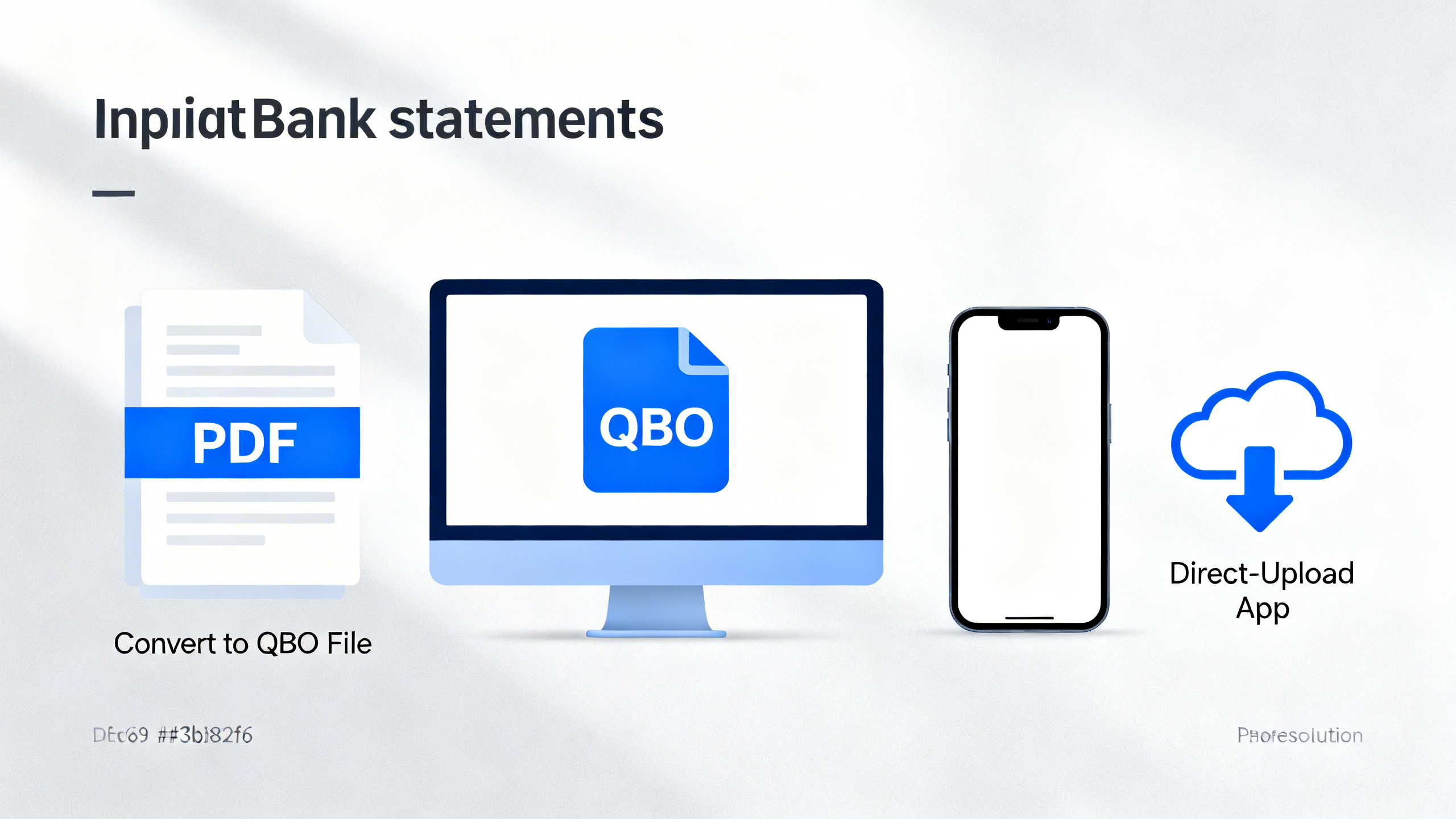
How to Import PDF to QuickBooks Online: Complete Guide
QuickBooks Online cannot read PDF files directly. To get your PDF bank statements into QuickBooks, you need to either convert the PDF to a format QuickBooks accepts (like QBO) or use an app that uploads PDF directly into QuickBooks.
Here are both approaches.
Method 1: Convert PDF to QBO, Then Import
Best for: Quick setup, no app integration, you keep a portable QBO file.
Step 1: Convert PDF to QBO
- Go to pdf-to-qbo.com
- Upload your PDF bank statement
- Download the generated QBO file
Step 2: Import into QuickBooks
Option A — via Banking menu (recommended for bank transactions):
- Sign in to QuickBooks Online
- Go to Banking menu on the left
- Choose the blue tile for the account you want to upload into
- Click Link account dropdown → Upload from file
- Drag and drop or select your QBO file
- Follow the on-screen instructions and review
Option B — via Gear/Import data:
- Click Gear ⚙ → Import data under Tools
- Select Bank transactions
- Upload your QBO file and follow the prompts
- Review and confirm the imported transactions
Pros: No app required, you own the QBO file, can re-import or backup. Simple for one-off or low-volume use.
Cons: Two-step process (convert + import).
Method 2: Use a QuickBooks App for Direct PDF Upload
Best for: High volume, automation, or if you prefer mapping inside an app.
Some apps (e.g. SaasAnt Transactions) let you upload PDFs directly into QuickBooks without converting to QBO first. The app parses the PDF and maps fields to QuickBooks.
Typical workflow:
- Install the app from the QuickBooks Apps marketplace
- Connect the app to your QuickBooks account
- Upload your PDF file
- Map the PDF fields to QuickBooks fields
- Review and import
Pros: Single-step upload, some apps support automation (email, FTP, Zapier).
Cons: Requires app installation and integration; may have subscription cost.
Which Method Should You Choose?
| Your situation | Recommended method |
|---|---|
| 1–10 statements/month, want simplicity | Convert to QBO (Method 1) |
| Need a portable QBO file for backup | Convert to QBO (Method 1) |
| High volume, need automation | Direct-upload app (Method 2) |
| Prefer no app integration | Convert to QBO (Method 1) |
CSV Alternative (Free Option)
QuickBooks also accepts CSV or TXT with 3 columns: Date, Description, Amount. If you use a free PDF parser to extract transactions into this format, you can upload without a paid converter. Our tool outputs QBO directly — no manual CSV formatting needed.
Common Errors When Converting PDF to QBO
Some converters produce errors. To avoid issues:
- Use a converter that outputs standard QBO format — compatible with QuickBooks Online
- Check scanned vs digital PDFs — some tools handle only one type
- Review the extracted data before importing into QuickBooks
Our converter produces QBO files that meet QuickBooks import requirements. Try it free →
Summary
- QuickBooks cannot read PDFs directly — you must convert or use an app
- Method 1: Convert PDF → QBO file → import into QuickBooks (simple, no app)
- Method 2: Use a QuickBooks app for direct PDF upload (integrated, may support automation)
For most users, converting to QBO with pdf-to-qbo.com is the fastest way to get started. Convert your PDF now →
Ready to Get Started?
Put what you've learned into practice. Start using our platform today.
Get StartedRelated Articles

Hubdoc PDF to CSV to QBO vs Direct PDF to QBO
Compare Hubdoc’s PDF→CSV→QuickBooks path with a direct PDF to QBO converter. When CSV mapping helps, when Web Connect is faster, and how to choose.

MoneyThumb PDF to QBO vs pdf-to-qbo.com: Which Converter Fits?
Compare MoneyThumb PDF2QBO with pdf-to-qbo.com for QuickBooks: pricing, online vs desktop, OCR claims, bank coverage, and when each tool makes sense.

U.S. Bank PDF to QBO for QuickBooks Online (Step-by-Step)
Convert U.S. Bank Business Checking statement PDFs to QBO for QuickBooks Online. Sign in, upload, download QBO, and import via Banking upload.