How to Convert PDF Statements to QBO? 3 Methods Compared
Compare manual reformatting, PDF-to-QBO converters, and AI automation. Learn QuickBooks import requirements and choose the best method for your volume.
How to Convert PDF Statements to QBO? 3 Methods Compared
Connecting your bank to QuickBooks is the smoothest way to sync transactions. But when you can't connect — or need to import historical bank statements — you must upload transactions manually. QuickBooks doesn't support uploading bank statements via API.
You'll need to convert your PDF bank statements into a supported format: .QBO, .OFX, .QFX, .CSV, or .TXT, then import into QuickBooks.
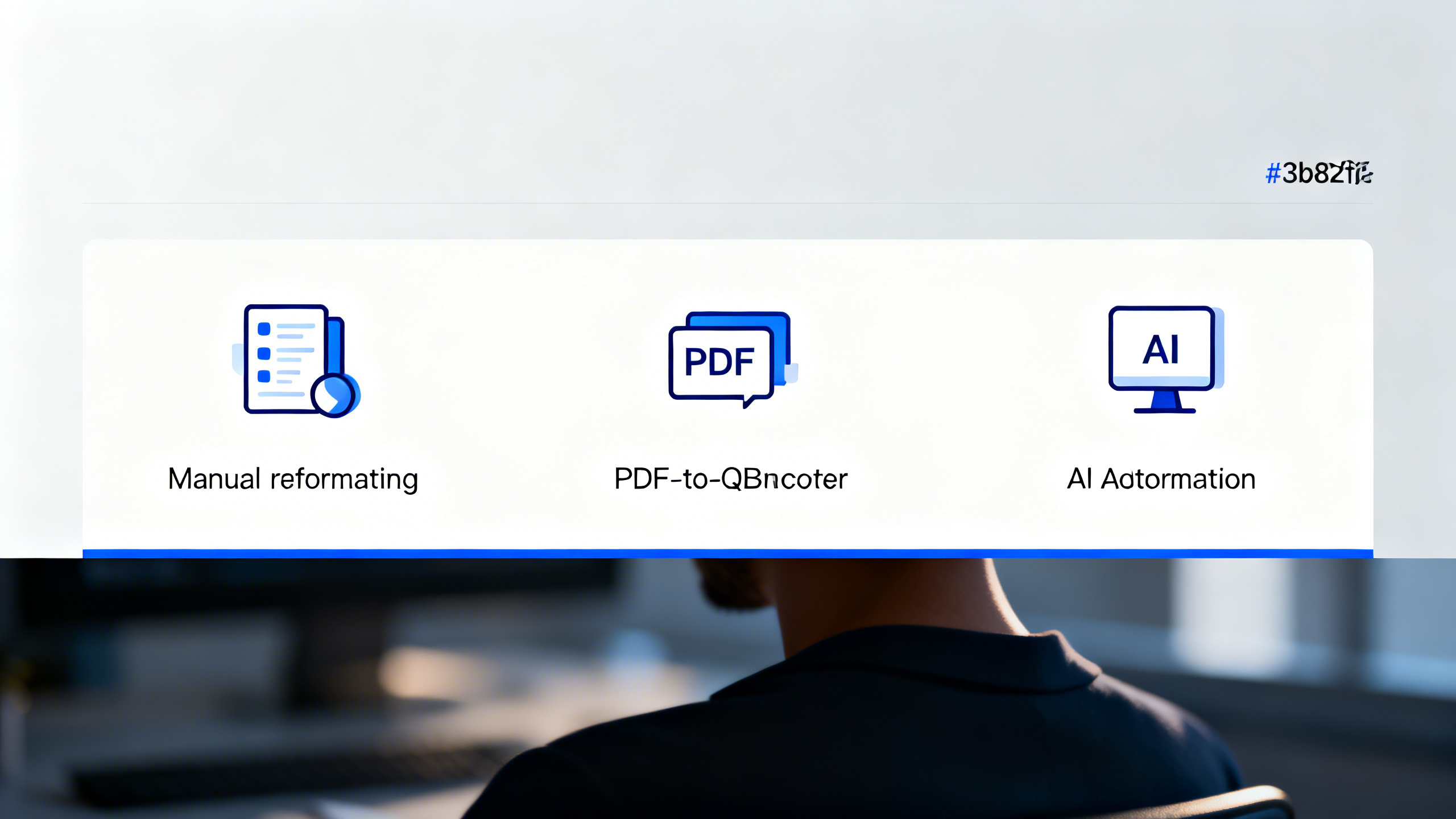
Here's a quick comparison of the 3 main approaches:
| Method | Best For | Manual Effort |
|---|---|---|
| Manual reformatting | One-time, low volume | Very high — clean data into QBO-like format |
| PDF to QBO converters | Recurring, low–medium volume | Low — validate and import the QBO file |
| AI workflow automation | Recurring, high volume | Minimal — auto-import from email/cloud |
1. Manual Reformatting (One-Time, Low Volume)
If your bank exports .QBO directly, you're done. For other formats (.CSV, .QFX, .OFX, .TXT), QuickBooks has strict rules:
QuickBooks import requirements:
- File size < 350 KB
- Remove standalone zeros (0) — leave cells blank
- Remove numbers from the Description column
- Credit/Debit headers must say only "Credit" or "Debit"
- Dates: same format throughout (dd/mm/yyyy recommended), no day of week
- CSV formats:
- 3-column: Date, Description, Amount
- 4-column: Date, Description, Credit, Debit
See QuickBooks' official CSV formatting guide for details.
Downside: Converting PDF → CSV → QuickBooks-ready format by hand is tedious and error-prone, especially for multiple statements.
2. PDF to QBO Converters (Recurring, Low–Medium Volume)
Best for: Monthly statements, a few accounts, bookkeepers who want a simple tool.
Tools like pdf-to-qbo.com and others (e.g. DocuClipper, MoneyThumb) extract transactions from your PDF and output QBO files.
Typical workflow:
- Upload your PDF bank statement
- The tool extracts transactions and generates a QBO file
- Download the QBO file
- Import into QuickBooks (Gear ⚙ → Import data)
Why use a converter:
- No Excel formatting or column mapping
- Quick upload → download cycle
- Output is QBO-ready for QuickBooks Online
Why pdf-to-qbo.com:
- Simple flow: sign in, upload, convert, download QBO
- Higher tiers may add batch or API-style workflows (see pricing)
- No desktop install — runs in the browser
Try our free PDF to QBO converter →
3. AI Workflow Automation (Recurring, High Volume)
Best for: Hundreds of statements, auto-import from email/cloud, built-in validation.
AI document processing platforms (e.g. Nanonets) automate the full pipeline:
- Bulk upload PDFs
- Auto-import from email, Google Drive, Sharepoint, Dropbox
- Data validation (totals, duplicates, reconciliation)
- Auto-export to cloud storage
Downside: Higher cost and setup complexity. Overkill for typical small business or bookkeeper with a few accounts per month.
Which Method Should You Choose?
| Your situation | Recommended method |
|---|---|
| 1–3 monthly statements | PDF to QBO converter |
| 5–20 statements/month | PDF to QBO converter (batch) |
| 50+ statements/month, need automation | AI workflow platform |
| One-time conversion | Manual or converter |
How to Import QBO Files into QuickBooks
- Sign in to QuickBooks Online
- Gear ⚙ → Import data under Tools
- Select Bank transactions (or the right data type)
- Upload your QBO file and follow the prompts
QuickBooks will match and categorize transactions. Always review before confirming.
Summary
- Manual: High effort, best for one-off low-volume cases
- PDF to QBO converter: Simple, fast, ideal for recurring low–medium volume
- AI automation: High volume, minimal manual effort, higher cost
For most bookkeepers and small businesses, a dedicated PDF-to-QBO converter like pdf-to-qbo.com is the fastest and easiest option. Try it free →
Ready to Get Started?
Put what you've learned into practice. Start using our platform today.
Get StartedRelated Articles

Hubdoc PDF to CSV to QBO vs Direct PDF to QBO
Compare Hubdoc’s PDF→CSV→QuickBooks path with a direct PDF to QBO converter. When CSV mapping helps, when Web Connect is faster, and how to choose.

MoneyThumb PDF to QBO vs pdf-to-qbo.com: Which Converter Fits?
Compare MoneyThumb PDF2QBO with pdf-to-qbo.com for QuickBooks: pricing, online vs desktop, OCR claims, bank coverage, and when each tool makes sense.

U.S. Bank PDF to QBO for QuickBooks Online (Step-by-Step)
Convert U.S. Bank Business Checking statement PDFs to QBO for QuickBooks Online. Sign in, upload, download QBO, and import via Banking upload.